EPFO Member Login 2026: PF Balance, Passbook & Claim Status
EPFO (Employees’ Provident Fund Organisation) is the government body that manages provident fund, pension and insurance for salaried employees in India. The PF deduction on your salary slip goes into your EPFO account, linked to your 12-digit UAN. Through the EPFO member portal (UAN e-Sewa) or the UMANG app, you can check your PF balance, download your EPF passbook, update KYC and withdraw money online, without visiting an EPFO office. This guide covers every step on the upgraded 2026 EPFO portal.
Member LoginUAN / employee portal | unifiedportal-mem.epfindia.gov.in |
Employer LoginHR / establishment | unifiedportal-emp.epfindia.gov.in |
EPF PassbookCheck PF balance | passbook.epfindia.gov.in |
Claim StatusTrack withdrawal | Track withdrawal |
Pension StatusPPO & payment info | Pension payment enquiry |
Raise GrievanceFile a complaint | epfigms.gov.in |
What Is EPF and EPFO?
The Employees’ Provident Fund (EPF) is a retirement savings scheme. You and your employer each contribute 12% of your basic salary every month, and the balance earns interest, set at 8.25% for 2025-26.
EPFO is the statutory body that runs three schemes: EPF (retirement savings), EPS 1995 (monthly pension) and EDLI (life insurance). Eligible salaried employees are covered by all three. Since June 2026, the EPF Scheme 2026 has replaced the old EPF Scheme 1952. Your balance, UAN and membership carried over unchanged.
The EPFO Portal: Three Separate Logins
The official EPFO website, epfindia.gov.in, gives each user type its own login:
- Member login: employees use their UAN to check balance, update KYC, file claims and track them. This guide covers this login.
- Employer login: establishments file monthly returns (ECR), pay contributions, register employees and approve KYC.
- Pension login: pensioners check PPO details and payment status, and submit life certificates through Jeevan Pramaan.
The website remains the main platform. The UMANG app handles UAN activation and offers quick mobile access to passbook, claims and tracking.
How to Log In to the EPFO/UAN Member Portal
Your Universal Account Number (UAN) is a permanent 12-digit number and your login ID. It stays the same when you change jobs; only your Member ID (PF account number) changes.
What You Need Before Logging In
| Requirement | Details | Where to get it |
|---|---|---|
| UAN | 12-digit ID | Salary slip or employer |
| Registered mobile | Must be linked to Aadhaar for OTPs | Number given at joining |
| UMANG app | For UAN activation | Play Store or App Store |
| AadhaarFaceRD app | For face authentication | Play Store or App Store |
| Browser | Chrome or Firefox | Clear cache if pages fail |
Step 1: Activate Your UAN on UMANG (First-Time Users)
Since the July 2026 upgrade, UAN activation and new UAN allotment work only on UMANG, not on the EPFO website.
- Install UMANG, register with your Aadhaar-linked mobile and set a 4-digit MPIN.
- Search EPFO and scroll to UAN Services Through Face Auth.
- Tap UAN Activation. Enter your UAN, Aadhaar number and mobile, tick the consent box and tap Send OTP.
- Enter the OTP. The AadhaarFaceRD app opens your camera.
- Sit in good light and hold still until a green circle confirms the scan.
- Check your name and date of birth, then tap Submit.
Your UAN is now active, and a temporary password arrives by SMS. To confirm, run UAN Allotment and Activation again; it should say the UAN is already activated.
Step 2: Log In and Set Your Password
- Open the member portal.
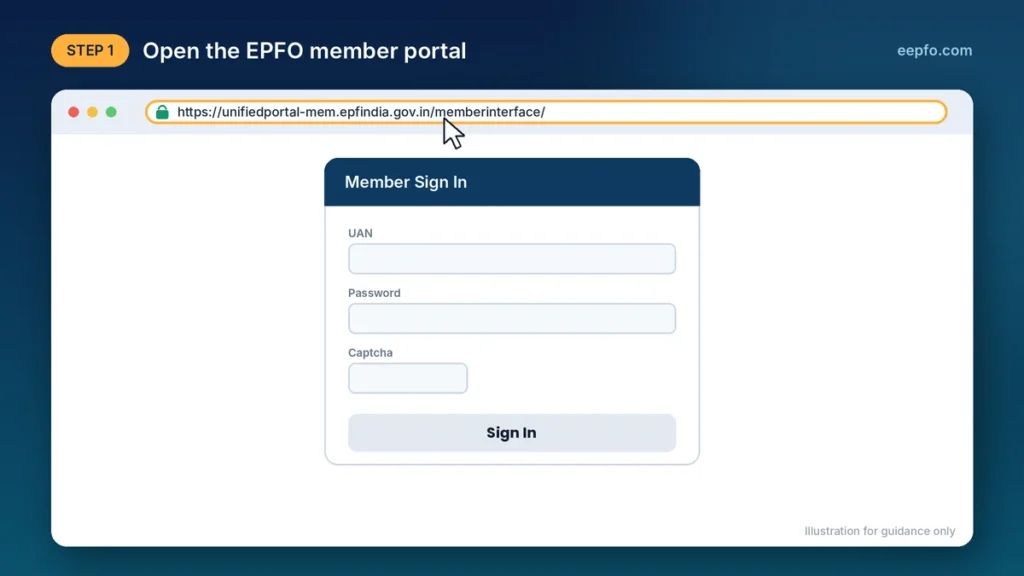
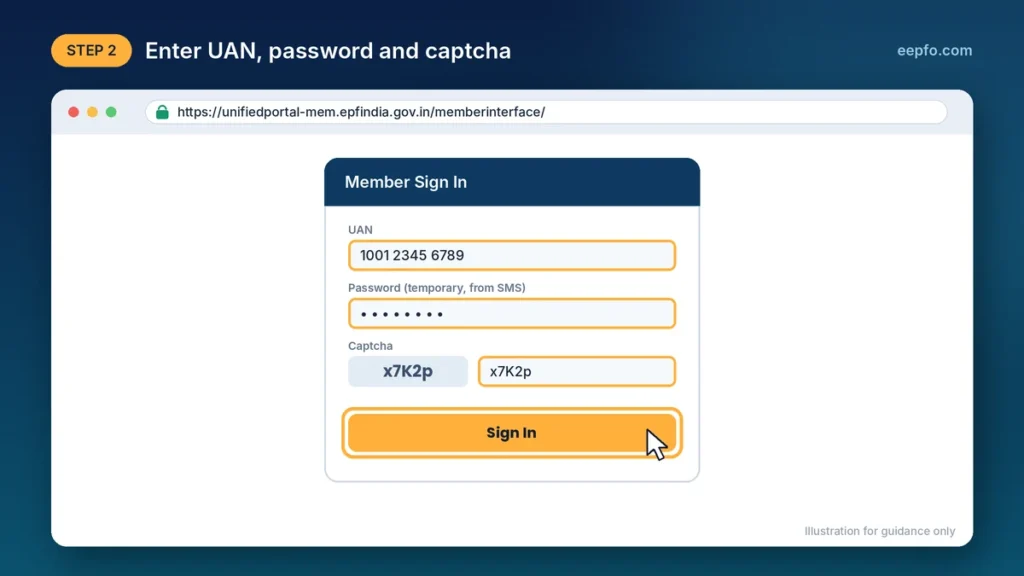
- Enter your UAN, the SMS password and the captcha, then click Sign In.
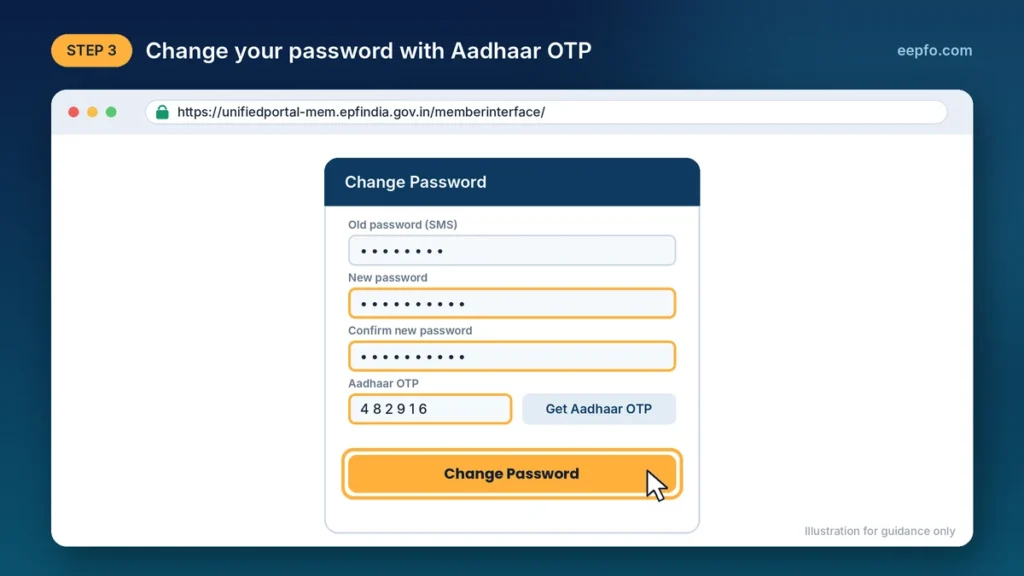
- When asked, enter the old password and a new one, request the Aadhaar OTP and click Change Password.
- Click Click Here to Login and sign in with your new password.
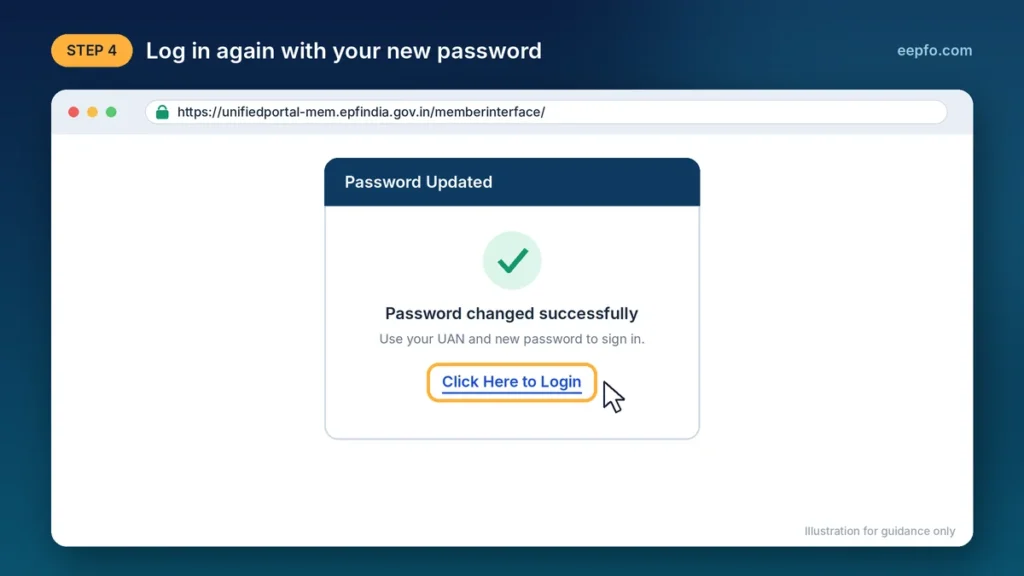
You now have access to balance, claims and KYC. Remember that EPFO never releases PF money automatically; you must file a claim (see the withdrawal section below).
EPFO e-Sewa Portal: Menus and Services at a Glance
After login, four menus run across the top of the dashboard:
- View: profile, service history (all past employers), UAN card and passbook.
- Manage: contact details, KYC (Aadhaar, PAN, bank), e-Nomination, basic details and date of exit.
- Account: password change with Aadhaar OTP.
- Online Services: withdrawal claims (Forms 19, 31, 10C, 10D), PF transfer and claim tracking.
| Service | Where to find it | Direct link |
|---|---|---|
| Check PF balance / passbook | View > Passbook | Open |
| Submit withdrawal claim | Online Services > Claim | Open |
| Track claim status | Online Services > Track Claim Status | Open |
| Update KYC | Manage > KYC | Open |
| Download UAN card | View > UAN Card | Open |
| Update contact details | Manage > Contact Details | Open |
| Transfer PF | Online Services > One Member One EPF Account | Open |
| Add nominee | Manage > E-Nomination | Open |
| Know Your UAN | Login page | Open |
| UAN for existing PF | Login page | Open |
| Death claim by nominee | Login page | Open |
| Higher pension tracking | Separate page | Open |
| Raise grievance | EPFiGMS | Open |
| Activate UAN / new UAN | UMANG app only | UMANG > EPFO > UAN Services Through Face Auth |
How to Link Aadhaar with Your UAN
Aadhaar linking is mandatory; without it, withdrawals, transfers and claims fail. Your employer usually links it, so check first: log in and open your profile. A masked Aadhaar number marked Verified means you are done.
If it is missing, use UMANG: open EPFO > e-KYC Services > Aadhaar Seeding, enter your UAN, verify the OTP, enter your Aadhaar details and verify a second OTP. The update usually reflects within a day.
Note: if your name, date of birth or gender differs from Aadhaar, linking fails. Correct it through Manage > Modify Basic Details with employer approval. Some older accounts may need a Joint Declaration attested by the employer and submitted to the regional EPFO office.
How to Update EPFO KYC
KYC confirms your identity and bank account. If PAN or bank shows “Not Available” in your profile, fix it on the website (not UMANG):
- Go to Manage > KYC.
- Select Bank, enter your account number and IFSC, click Verify IFSC, then save with an Aadhaar OTP.
- Select PAN, enter the number and your name exactly as on the card, then save with an Aadhaar OTP.
Bank details are verified by your bank, then show “Pending with Employer for Digital Signing” until HR approves with their DSC. This usually takes 7 to 10 working days.
Note: if PAN is not linked and you withdraw over Rs 50,000 within five years of service, higher TDS applies.
e-Nomination (Do This After KYC)
e-Nomination works fully only on the website, and skipping it can block claims.
- Go to Manage > E-Nomination.
- Update your photo (under 100 KB) and address.
- Click Add Family Details and enter each nominee’s Aadhaar, photo, relation and share.
- Click E-sign and verify with an Aadhaar OTP.
The nomination is valid only after the e-sign. If you exit before it, it stays pending.
How to Check PF Balance and Download Your EPF Passbook
The passbook shows every month’s employee and employer contribution, EPS share, interest and running balance.
On the website:
- Log in and go to View > Passbook.
- Sign in on the passbook page with the same UAN and password.
- Click View Passbook next to the Member ID (employer) you want.
- Click Download PDF to save it.
On UMANG: open EPFO > Employee Centric Services > View Passbook, verify with OTP, pick the Member ID and tap Download. For more detail, see our EPF passbook guide.
Note: a newly activated UAN can take a few hours to show the passbook. If it fails during the day, try off-peak hours.
Check PF Balance Without Login
| Method | How to use | What you get |
|---|---|---|
| Missed call | Call 9966044425 from your registered mobile; it drops after two rings | Balance by SMS |
| SMS | Send EPFOHO UAN ENG to 7738299899 (swap ENG for your language code) | Balance and last contribution |
| Helpline | Call toll-free 1800-118-005 | Support from an agent |
How to Retrieve a Forgotten UAN
- Open Know Your UAN on the login page.
- Enter your mobile number and captcha, then verify the OTP.
- Choose Aadhaar, PAN or Member ID, and enter your name and date of birth as on Aadhaar.
- Your UAN appears on screen and arrives by SMS. A Forgot Password link appears too.
On UMANG, use Employee Centric Services > Know Your UAN. If two UANs show up, see the transfer section below.
Have only an old PF number? Use the same flow and choose Member ID, entering the PF number from an old salary slip. If you see “ORA-20001 demographic details do not match”, your EPFO record differs from Aadhaar. Correct it through the Joint Declaration option under Manage, or raise a grievance.
How to Transfer Old PF to Your New Account
When you switch jobs, transfer your PF instead of withdrawing it. This keeps your service continuous for pension and for tax-free withdrawal after five years. First download your full passbook to note old balances.
- Log in and go to Online Services > One Member One EPF Account (Transfer Request).
- Click Get Details and select the old Member ID to transfer.
- Submit with OTP, then follow progress under Track Claim Status.
UMANG also offers this under Employee Centric Services, but the website is more reliable.
Two UANs? Email both numbers to uanepf@epfindia.gov.in so EPFO can block the older one, then file a transfer. Your employer can also request the transfer, and EPFO links the old Member ID to your active UAN.
How to Check EPFO Claim Status
- Website: log in, then Online Services > Track Claim Status shows the tracking ID, form type and status.
- UMANG: open EPFO > Employee Centric Services > Track Claim, enter your UAN and OTP, then tap a claim ID for details.
| Status | What it means | What to do |
|---|---|---|
| Under process | EPFO is verifying your claim | Wait 7-10 working days |
| Payment under process | Approved; transfer started | Check your bank in 2-3 days |
| Settled | Credited to your bank | Check statement and SMS |
| Rejected | Mismatch or missing details | Note the reason, fix it, reapply |
| Pending at field office | Regional office verification | Contact the EPFO office |
| Not available | No claim found | Recheck UAN after 24 hours |
Under the EPF Scheme 2026, EPFO must settle complete claims, or tell you what is missing, within 20 days. If yours crosses that, raise a complaint on EPFiGMS.
Tracking a Higher Pension Application
If you applied for higher pension under EPS 1995, open the higher wages page. Click Track Application Status, enter your acknowledgement number, UAN or PPO number, and verify the OTP.
“Pending in Regional Office” usually means your past employer’s records are still being checked. Once cleared, EPFO issues a demand letter for the amount to pay. After payment, it issues your Pension Payment Order (PPO), which you can also download from UMANG (Pensioner Services) or DigiLocker.
How to Withdraw PF Online
The EPF Scheme 2026 simplified withdrawals. While employed, you can take a partial withdrawal of up to 100% of your eligible balance for essential needs (illness, education, marriage), housing, or special circumstances. However, 25% of your contributions must stay in the account, and you need at least 12 months of membership. Full settlement is allowed on retirement at 55 or later, permanent incapacity, retrenchment, voluntary retirement, or moving abroad. Changing jobs is not a reason to withdraw; transfer instead.
Before you apply: UAN active, Aadhaar, PAN and bank verified in KYC, date of exit marked if you left a job, and old PF accounts merged.
| Form | Use it for |
|---|---|
| Form 31 | Partial withdrawal while employed |
| Form 19 | Final PF settlement |
| Form 10C | Pension withdrawal or scheme certificate (under 10 years’ service) |
| Form 10D | Monthly pension (needs employer DSC) |
On the website:
- Log in. If needed, mark your exit under Manage > Mark Exit.
- Go to Online Services > Claim (Form 31, 19, 10C & 10D) and verify your bank account number.
- Click Proceed for Online Claim and choose your form.
- Enter your address exactly as on Aadhaar. Upload a cancelled cheque or passbook if asked.
- If service is under five years and the amount exceeds Rs 50,000, upload Form 15G (if eligible) to avoid TDS.
- Click Get Aadhaar OTP, then Validate OTP and Submit Claim Form.
On UMANG: go to EPFO > Employee Centric Services > Raise Claim, enter your UAN and OTP, choose the form, confirm bank details and submit.
Payment goes only to your verified bank account, and most claims no longer need employer approval.
How Families Can Claim EPF After a Member’s Death
Nominees file death claims on the website; this is not on UMANG. Keep ready the member’s UAN, the nominee’s Aadhaar details, the death certificate and the nominee’s bank proof (PDFs, max 2 MB each).
- Open the death claim page.
- Enter the member’s UAN and the nominee’s Aadhaar, name and date of birth, then click Get Authorisation PIN.
- Enter the OTP sent to the deceased member’s registered mobile.
- Select Fill Death Claim, enter the date of death and upload the certificate.
- Fill all three claims: Form 20 (PF lump sum), Form 10D (family pension) and Form 5IF (EDLI insurance).
- Add bank details and submit with the OTP sent to the nominee’s Aadhaar-linked mobile.
If the portal says service details are required, a past employer has not updated exit records. Ask them to fix it, or submit a Joint Declaration or grievance with salary slips and the death certificate.
Common EPFO Login Problems and Fixes
| Problem | Fix |
|---|---|
| Account blocked after failed logins | Click Unlock Account below the Sign In button, or wait 30 minutes |
| Account or claims restricted | File e-Nomination under Manage, after updating your photo and address |
| Details don’t match Aadhaar | Correct via Manage > Modify Basic Details with employer approval |
| Forgot password | Click Forgot Password, enter UAN, verify OTP and reset |
| Passbook not loading | Try off-peak hours or use UMANG |
| KYC pending or rejected | Re-check details and ask HR to approve with DSC |
| Multiple UANs | Transfer funds to one UAN and ask EPFO to deactivate the other |
| Claim or transfer delayed | Check status, contact your employer, then raise a grievance |
UMANG for EPFO on Mobile
Download UMANG (or give a missed call to 9718397183 for the link), search EPFO and open Employee Centric Services. With your UAN and OTP you can view and download your passbook, raise and track claims, activate a UAN by face authentication, file grievances and find your nearest EPFO office.
How to Register a Grievance with EPFO
If a claim has been pending too long, KYC keeps getting rejected or your balance looks wrong, file a complaint on the EPFO Grievance Management System (EPFiGMS):
- Visit epfigms.gov.in and click Register Grievance.
- Select your user type (PF member, pensioner or employer).
- Enter your UAN or PF details, and personal and employer information.
- Choose the issue category, upload supporting documents and submit.
You receive a registration number to track the resolution.
EPFO Customer Care
| Contact method | Details |
|---|---|
| Toll-free helpline | 1800-118-005 |
| employeefeedback@epfindia.gov.in | |
| Grievance portal | epfigms.gov.in (24×7 online filing) |
| Regional office | Find your office for complex cases |
FAQs
How do I get my EPFO login ID?
Your UAN is your login ID. Your employer generates it, and it appears on your salary slip. If you lost it, use Know Your UAN on the portal or UMANG.
How do I get a UAN or register for EPF?
Employees don’t register themselves; the employer creates your PF account and UAN. If you have no UAN yet, UMANG’s UAN Allotment and Activation can generate one with face authentication.
Can I log in without my registered mobile number?
You can sign in with UAN and password, but activation, password reset, KYC and claims all need an OTP on your registered mobile. Update it first.
How do I reset my EPFO password?
Click Forgot Password on the login page, enter your UAN and captcha, verify the OTP and set a new password.
What is the difference between Form 19, 10C and 31?
Form 31 is a partial withdrawal while employed. Form 19 is final PF settlement. Form 10C withdraws the pension portion when service is under 10 years.
How do I add a nominee?
Log in, go to Manage > E-Nomination, add family details and e-sign with an Aadhaar OTP.
Who must join EPF?
Employees earning basic wages up to Rs 15,000 a month in establishments with 20 or more workers must join. Others can join with employer consent.
What are the main benefits of EPF?
Tax-efficient retirement savings, a lifelong pension through EPS, life cover through EDLI, and partial withdrawals for illness, education, marriage and housing.
Conclusion
EPFO has moved almost every PF service online. Activate your UAN on UMANG, log in to the member portal, complete your KYC and e-Nomination, and merge old accounts. Then check your passbook every few months so missing contributions don’t surprise you later. Services sometimes move between the portal and UMANG, so this guide covers both.